DO NOT COMPLETE THIS TASK UNTIL YOU HAVE TRANSFERRED TO THE NEW SCHOOL YEAR.
Step 1.
Board Level – Setup – Marks & comments – Topics – GO
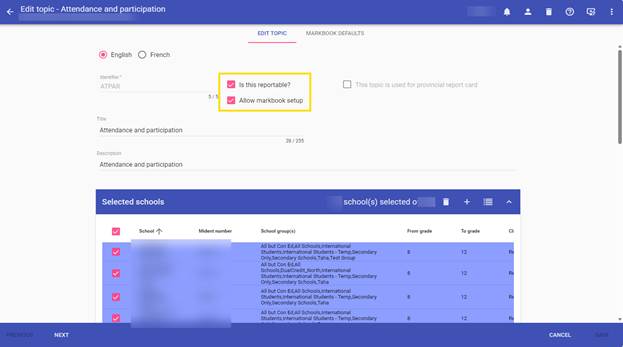
Click on the PINK + sign to add a new Topic to your list.
Type in the Identifier – ATPAR
Title -- Attendance and participation
Description -- Attendance and participation
Select your Secondary school(s)
SAVE
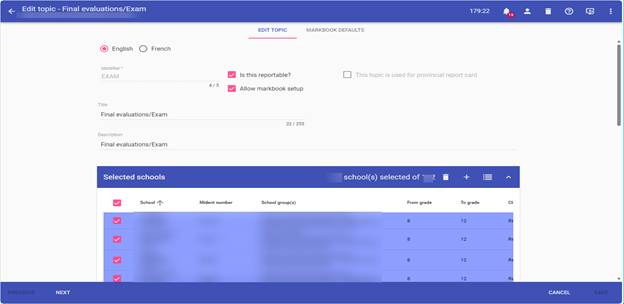
Click on the PINK + sign to add another new Topic to your list.
Type in the Identifier – EXAM
Title -- Final evaluations/Exam
Description -- Final evaluations/Exam
Select your Secondary school(s)
SAVE
Step 2.
Board Level – Setup –Marks & Comments – Achievement Profiles – GO
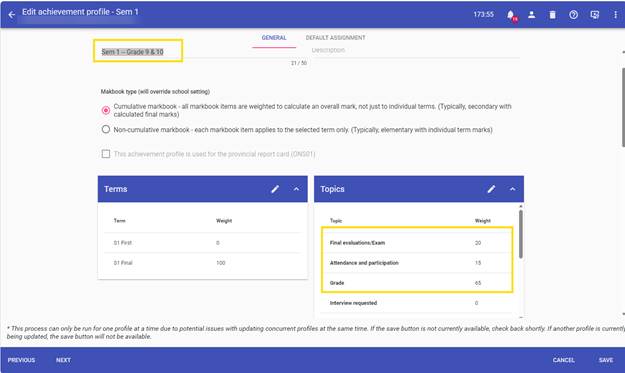
Edit each Secondary Profile – Topics – Edit Pencil
Click the box to add Attendance and participation and Final evaluation/Exam to the profile.
Assign the appropriate weight for -- Grades 9 and 10
- 65%: Classroom work/Grade
- 20%: Final evaluations
- 15%: Attendance and participation
Click on DONE
Change the Title to show that this is for Grade 9 and 10 courses -- Sem 1 -- Grade 9 & 10
SAVE.
Now that you have renamed all the existing achievement profiles so they can be used for Grade 9 & 10 courses and assigned the appropriate weights you MUST add new achievement profiles that we can use for Grade 11 & 12 courses and assign the appropriate weights.
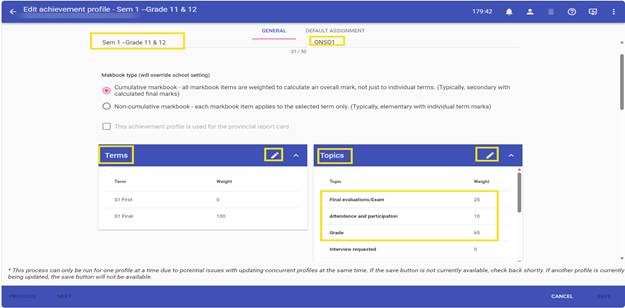
To do this Click on the PINK + sign – enter the Title - Sem 1 --Grade 11 & 12 –add the Terms, Topics and add your secondary school(s) to the profile.
Edit the topics and assign the appropriate weights - Grades 11 and 12
- 65%: Classroom work/Grade
- 25%: Final evaluations (mandatory written exams)
- 10%: Attendance and participation
Click on Done and SAVE each profile. Below is an example of 1 achievement profile you will need to complete this step for each achievement profile needed for Grade 11 & 12.
Step 3.
Board Level – Setup –Marks & Comments – Achievement Parameters – GO
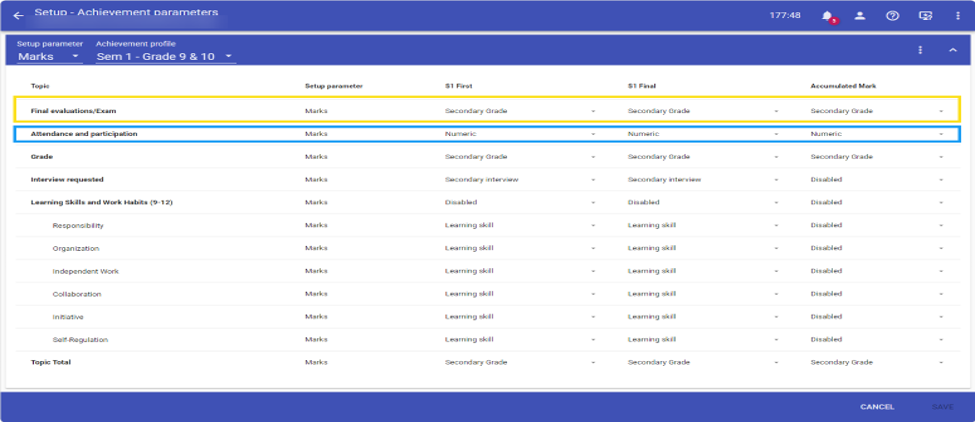
Select each Achievement Profile – setup parameter = Marks
Select Secondary Grade for First, Final and Accumulated Mark for topics Final evaluation/Exam
Select Numeric for First, final and Accumulated mark for topics Attendance and participation
SAVE.
Step 4.
https://sis.support.edsembli.com/a/solutions/articles/8000112065?lang=en&portalId=8000006815
Go to the school level – Setup – Class info - Classes – This Year - Assign the correct Achievement Profile to your classes using the newly created Achievement profiles per grade level.
Step 5.
Go to the school Level – Achievement – Tools – Correlate so that everything will sync between Edsembli and ConnectED.

Was this article helpful?
That’s Great!
Thank you for your feedback
Sorry! We couldn't be helpful
Thank you for your feedback
Feedback sent
We appreciate your effort and will try to fix the article